Syllabus documentation
A Ghost 6 theme for online courses: courses with modules and levels, a learning path that fills as readers finish lessons, quick checks, certificates and paid lessons.
Thank you for choosing Syllabus. This guide covers everything from uploading the theme to setting up paid memberships. If something is not covered here, write to support@codememory.com — we answer within one working day.
- Version2.0.0
- Ghost6.0.0 or later
- Live demosyllabus.ghostcms.templates.codememory.com
- AuthorCode Memory
Highlights
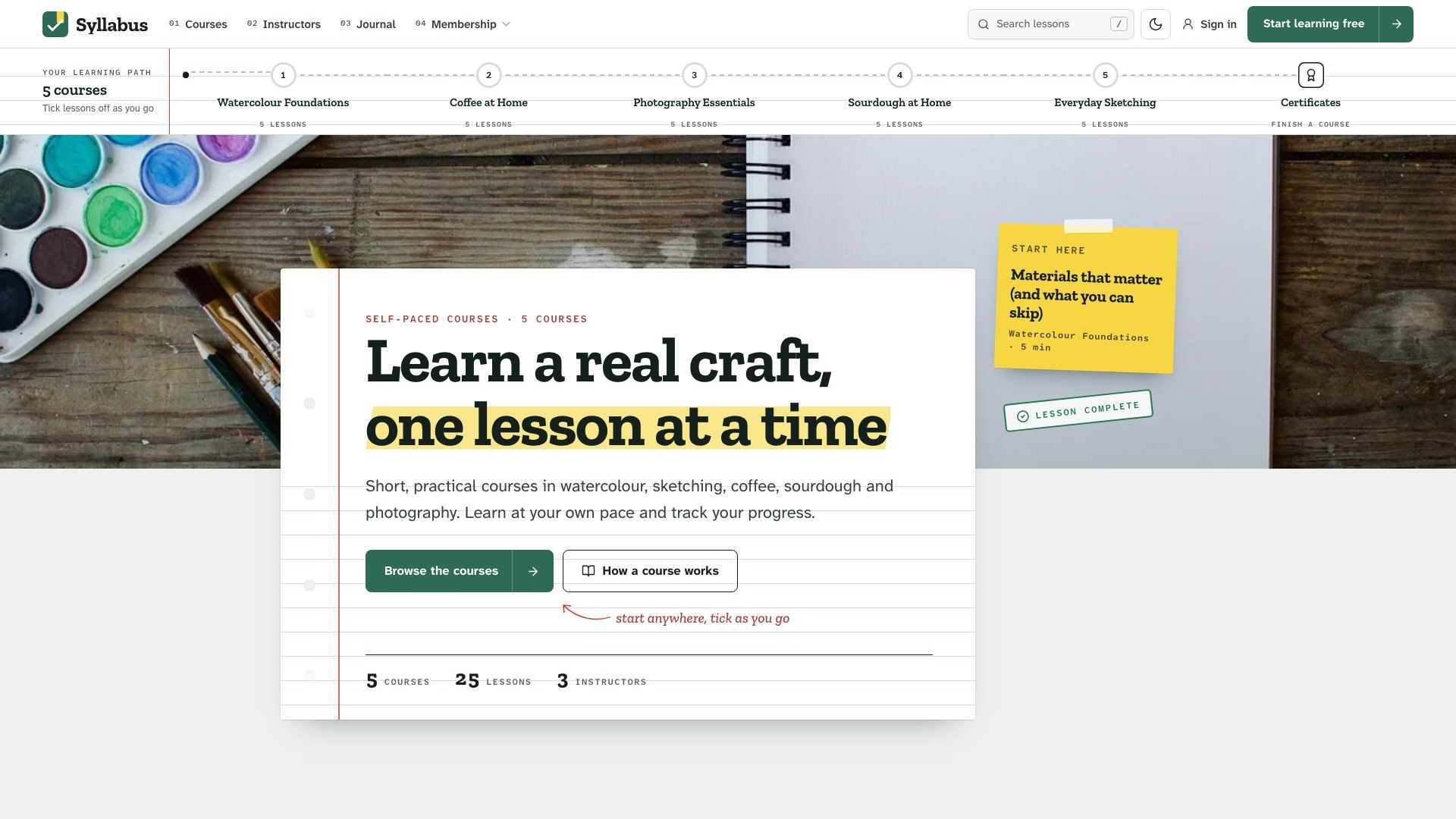
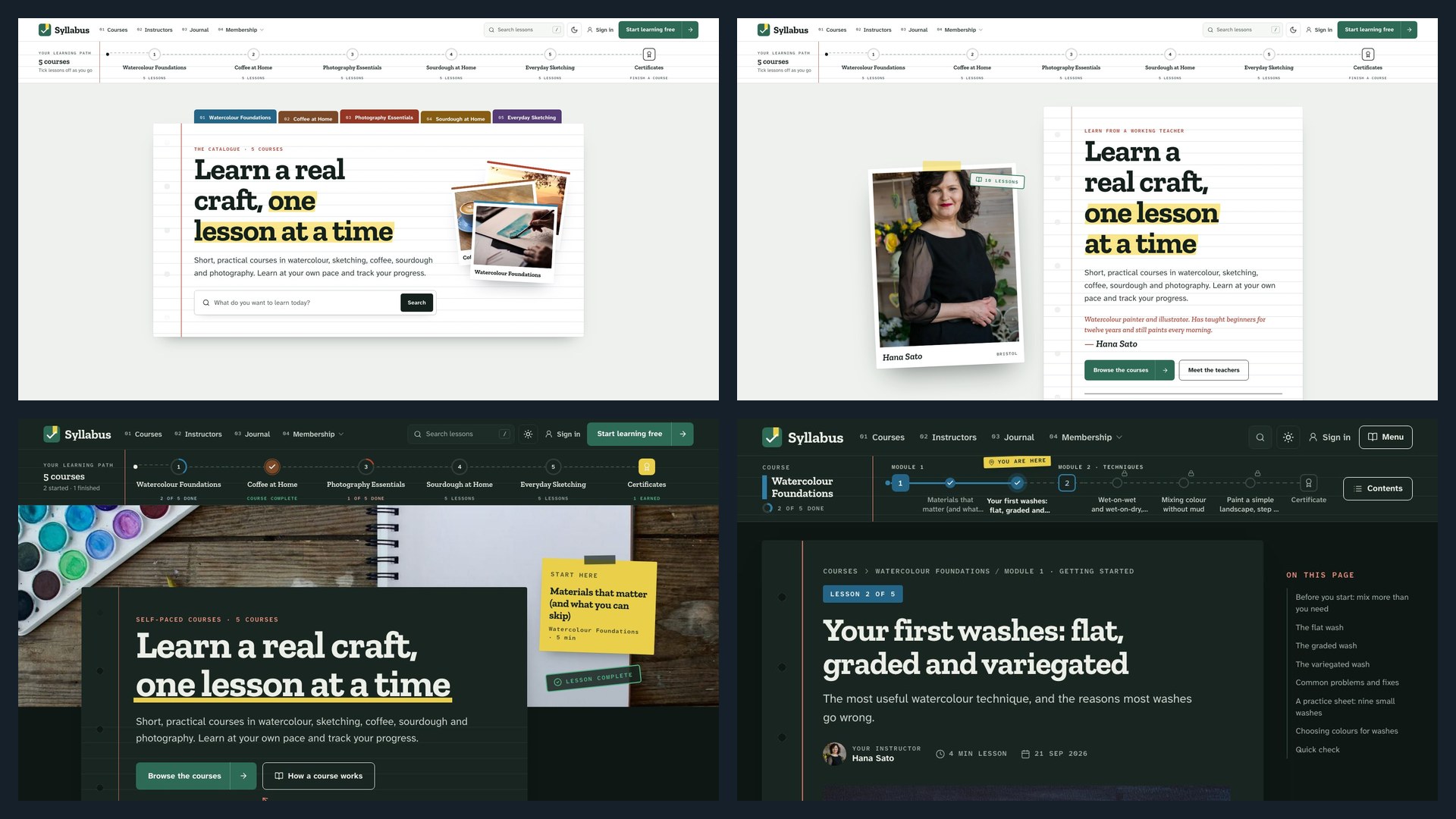
- Three homepages (Campus, Catalogue, Mentor), chosen with one setting, plus page templates to show them side by side; Campus lays a ruled sheet over your cover photo and lists your courses like a book's contents
- Courses from tags: each public tag is a course, its posts are the lessons, oldest first
- Modules from internal tags (#chapter Getting started), numbered, with their lessons and minutes
- A learning path on the course path, the outline, the course page and the homepage: numbered stops, ticks, rings and a line that fills as lessons are finished
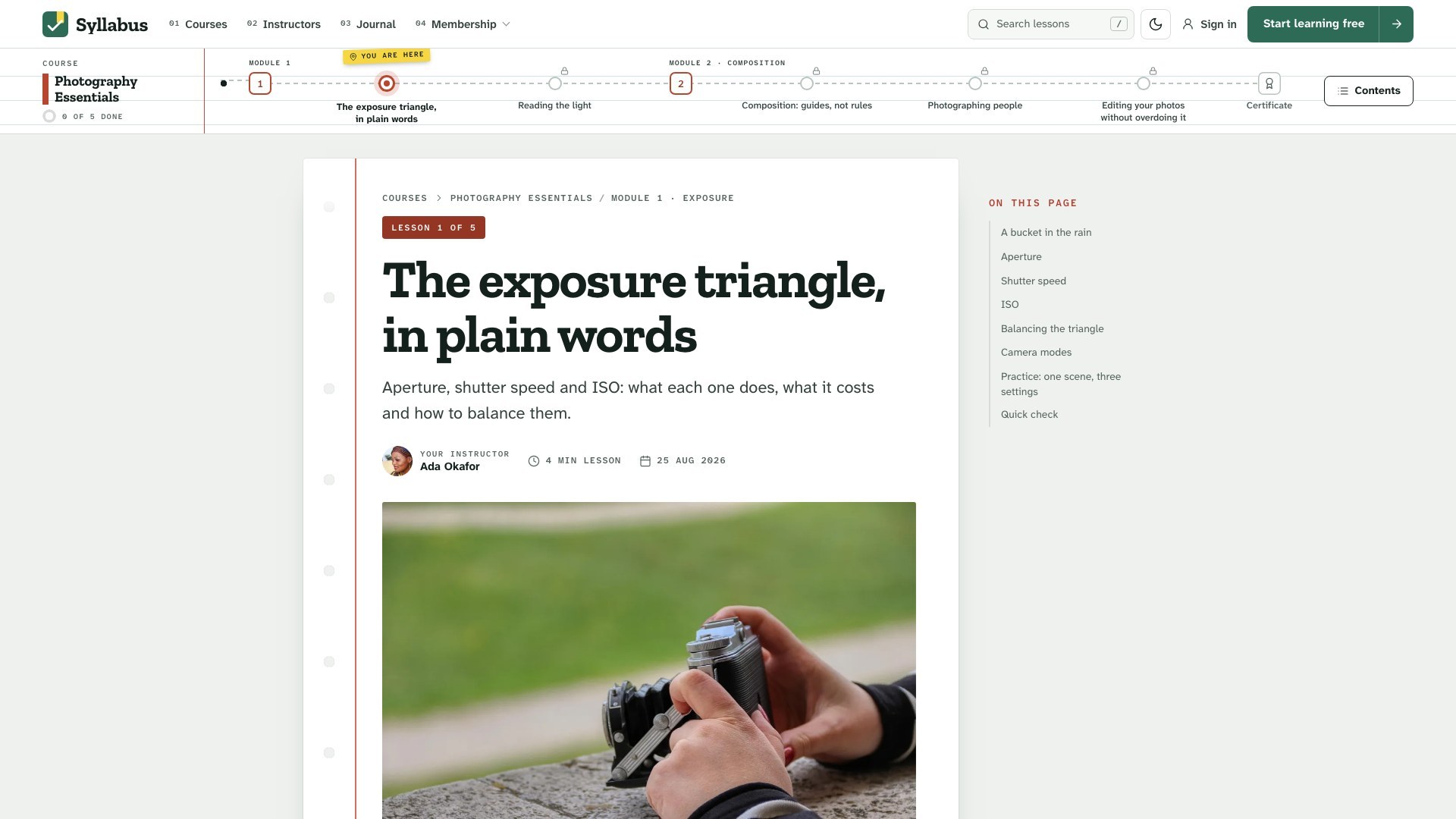
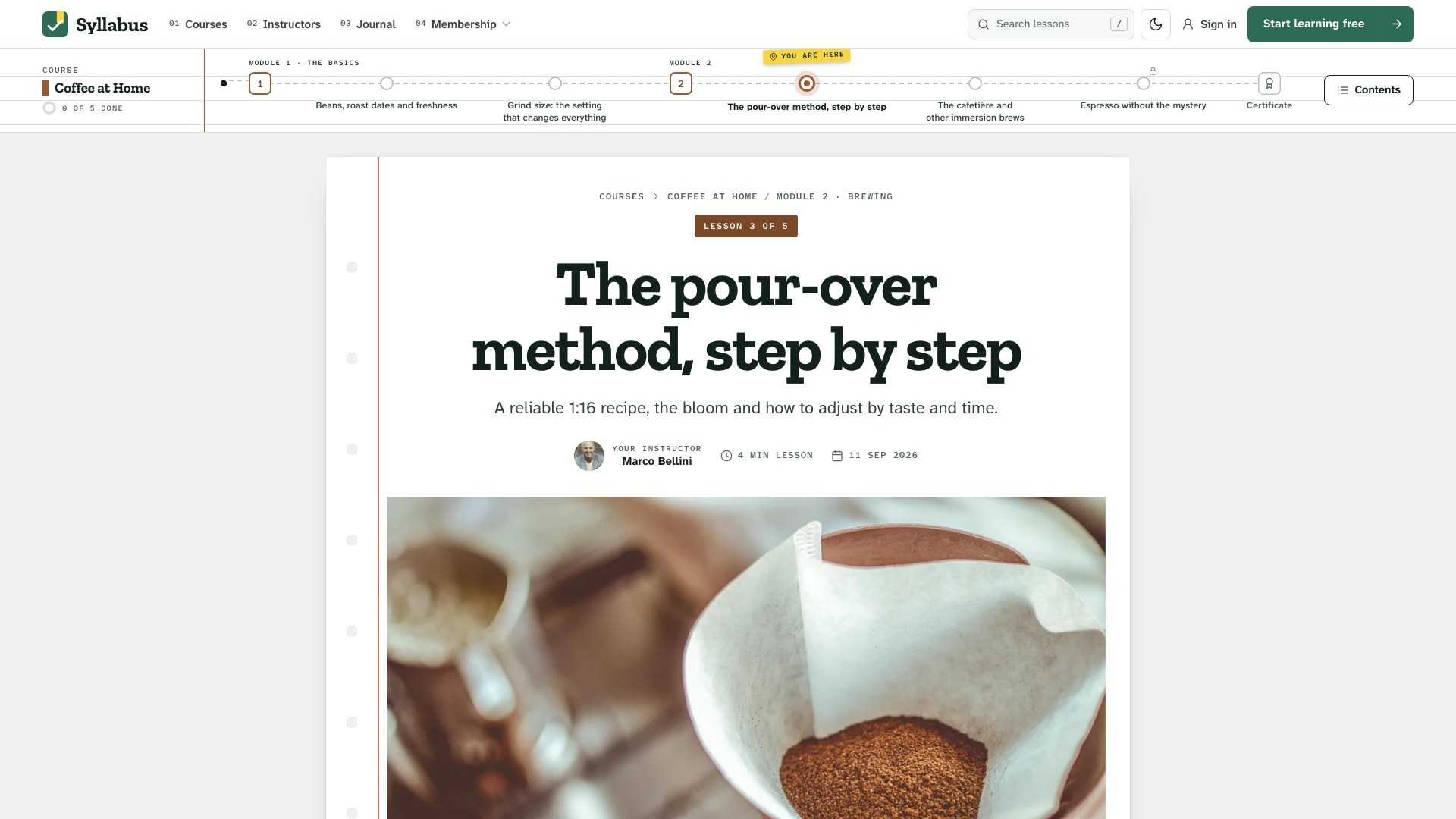
- Lesson page with the course path along the top (modules as numbered stops, every lesson with its title, "You are here"), "Lesson 2 of 5", the module in the breadcrumb, an "On this page" list and a 20 px reading column
- Lesson layouts: the standard lesson, the Lesson Focus template, video lessons, and a Course path setting for lesson titles or beads only
- Video lessons: tag a lesson #video and the video at its top takes the cover's place; cards, outlines and the lesson head show a play mark
- Mark as complete with a progress ring and a Continue card that brings readers back to their lesson
- Quick checks: a list under a "Quick check" heading becomes a quiz with a score and Try again
- Certificate of completion page: name, course, lessons, instructor and date, printable or saved as PDF
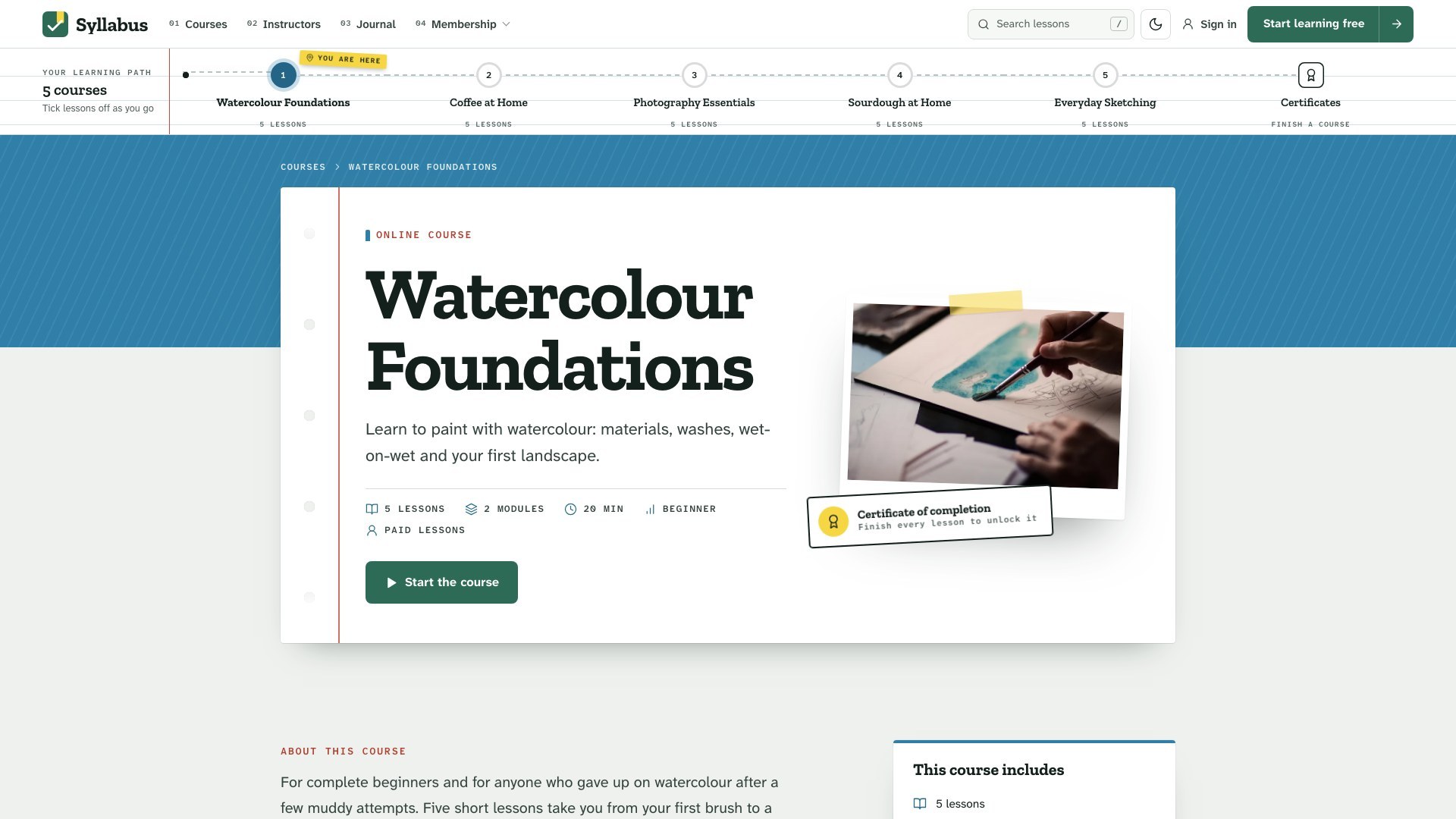
- Course page with a hero, facts (lessons, modules, total time, level and access), Start / Continue with the next lesson, the curriculum and the instructor
- About this course: give a page the course tag and its text (who it is for, what you need, a FAQ of toggle cards) shows above the curriculum
- Course levels from one internal tag on the first lesson (#beginner, #intermediate, #advanced, #all-levels), shown on cards and course pages
- Access labels worked out from the lessons: Free, Free account (members-only lessons) or Paid lessons on every course card and course page
- Members-only and paid lessons: a lock on the course path and in the outline, and a clear gate with Join free or the plans
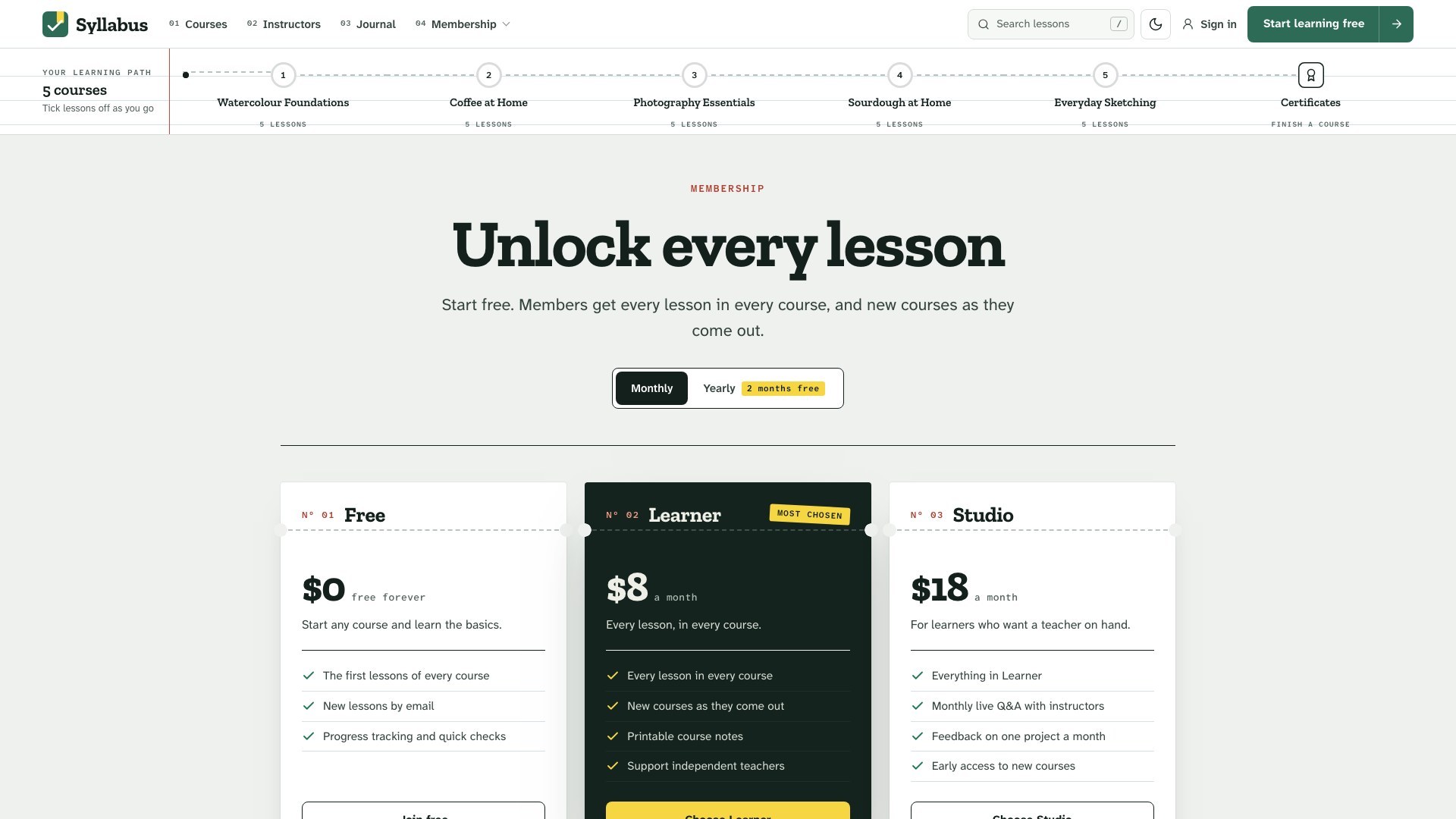
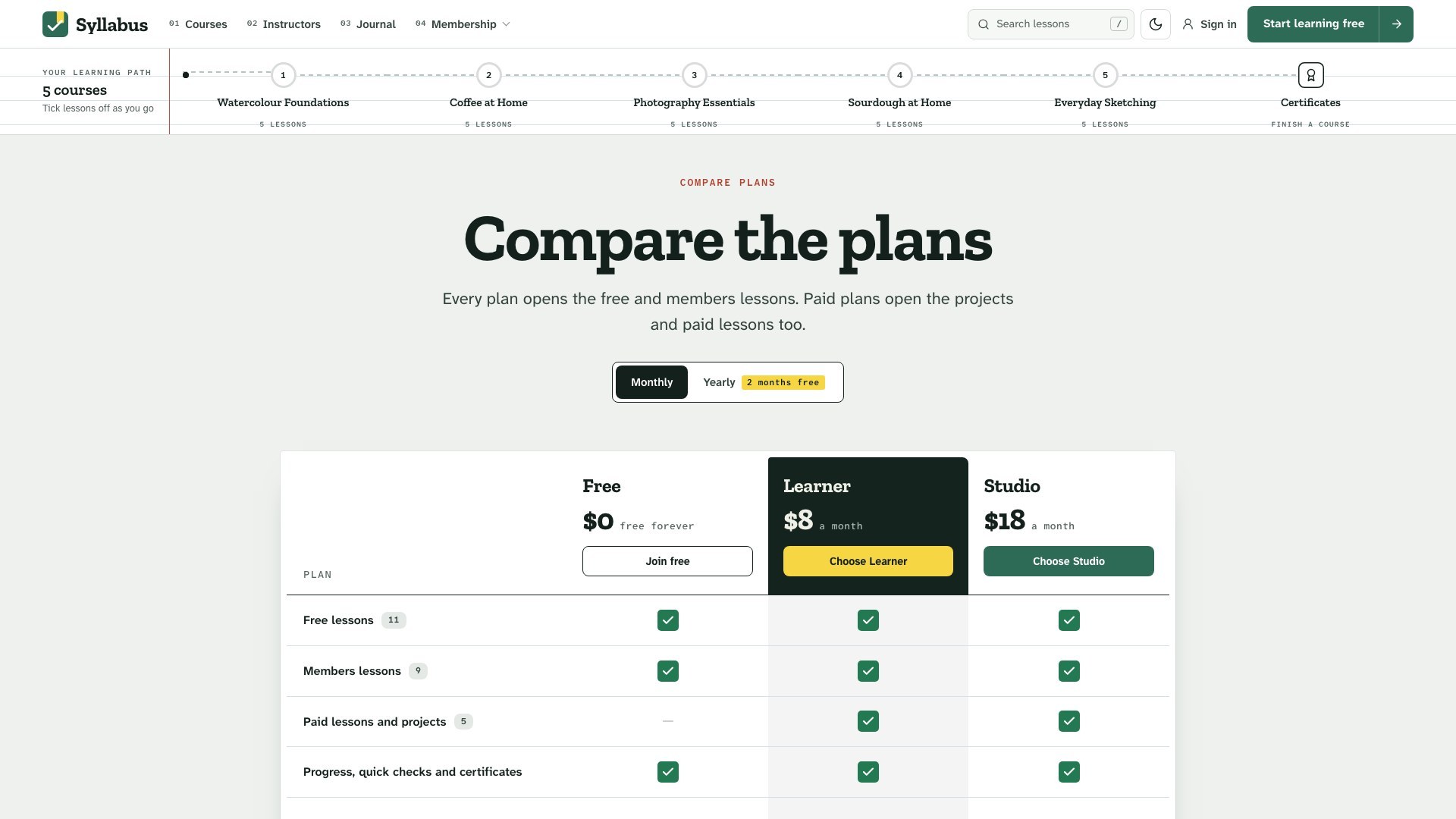
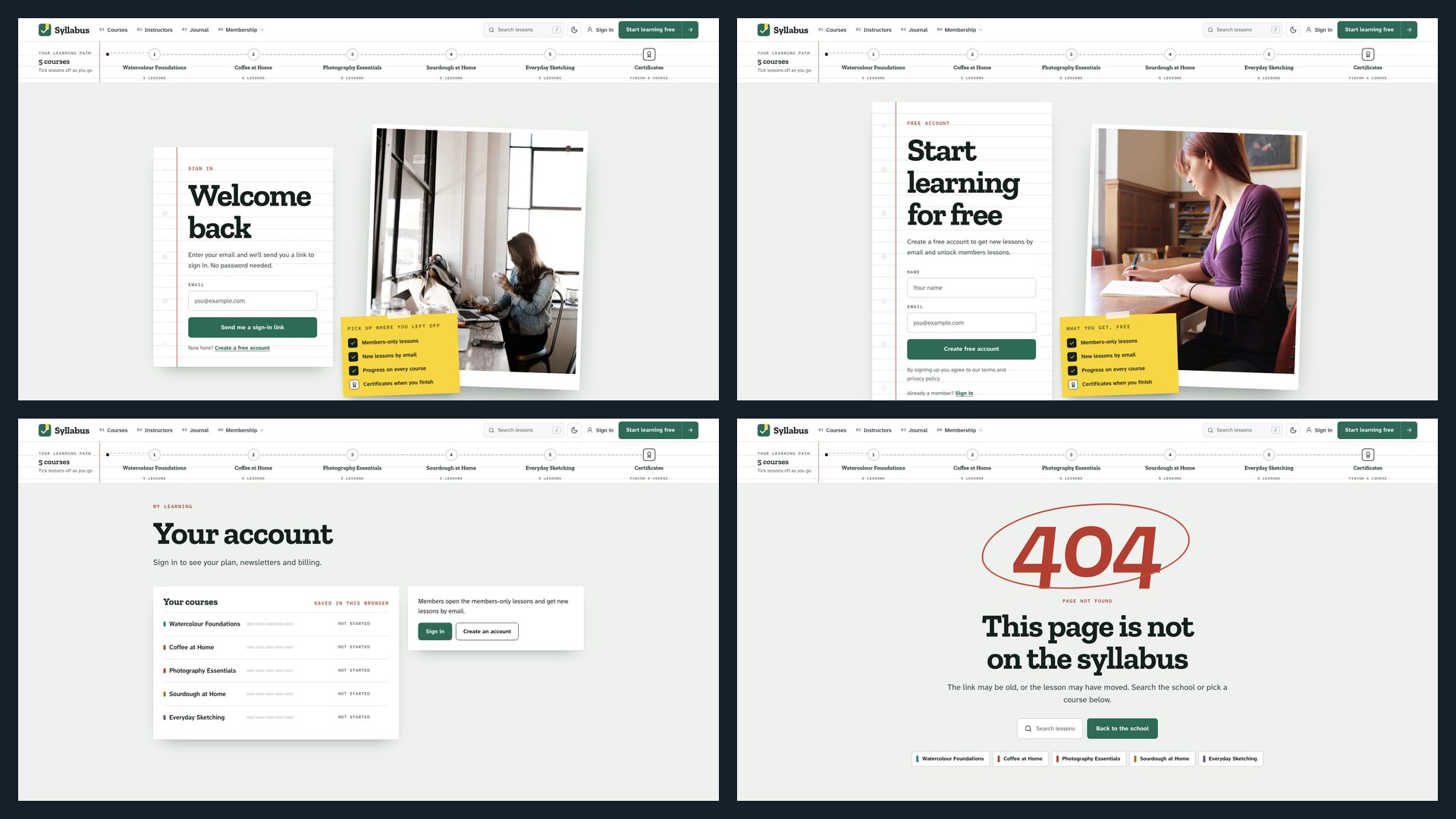
- Two membership layouts (tier cards with a monthly/yearly switch, and a comparison table), sign in, sign up and an account page with the reader's courses
- Courses catalogue with a live filter and level chips (Free, Beginner, Intermediate, Advanced), and an Instructors page
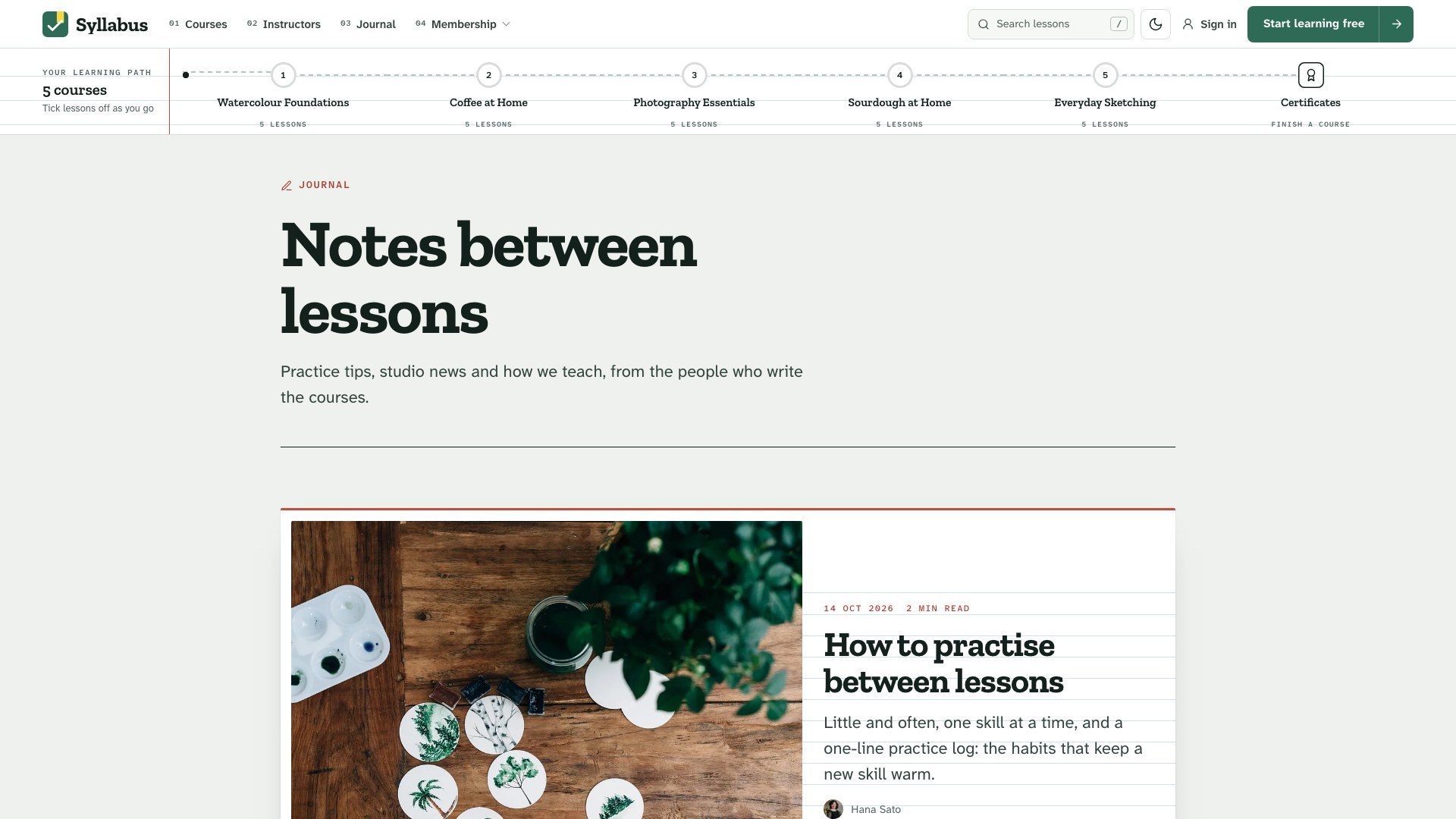
- A journal beside the courses: posts tagged #journal get an article layout, their own page, a homepage section and a place on the instructor's page, and stay out of lesson lists and counts
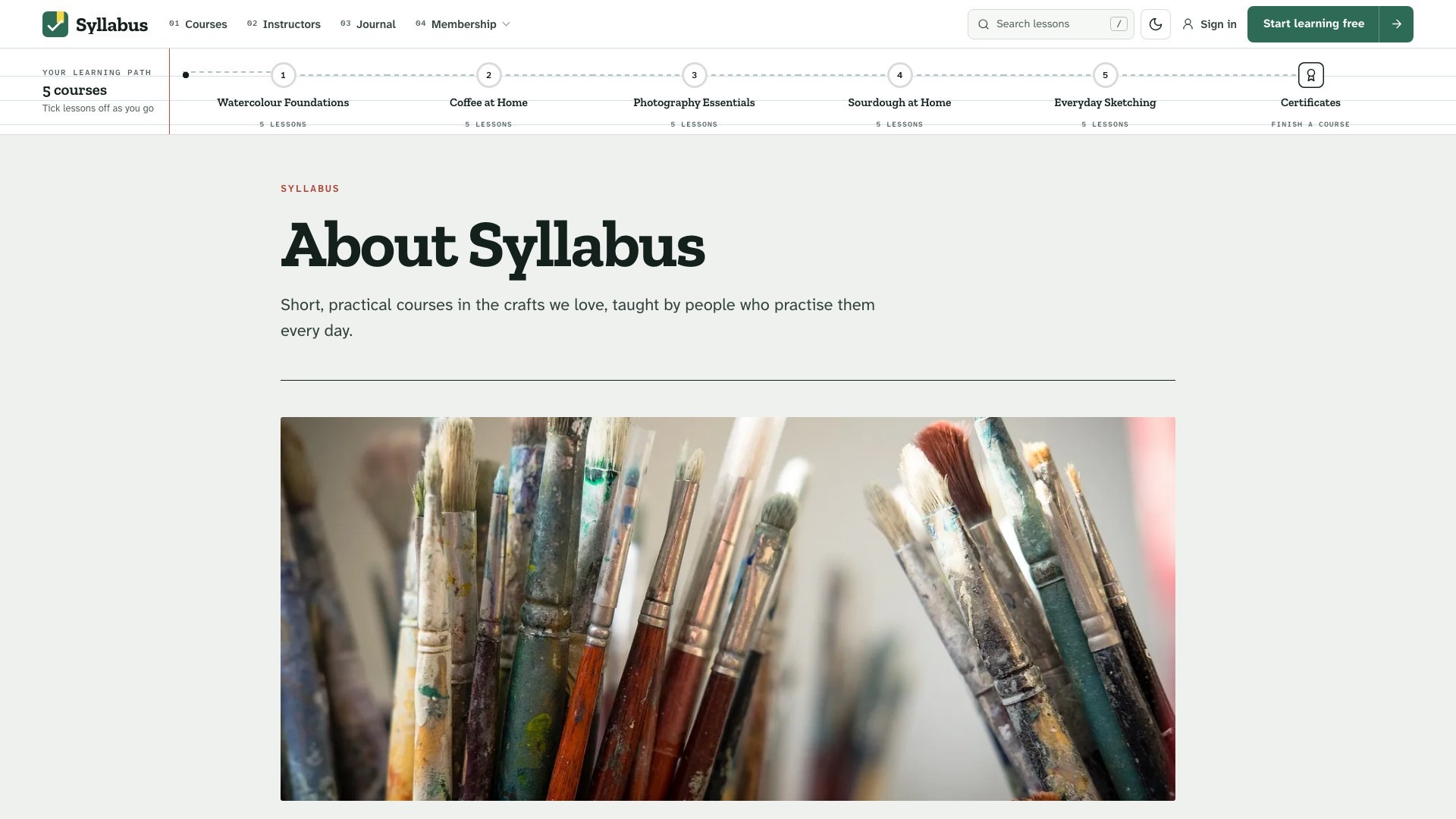
- A course-path header: the school bar (logo, your links, search, sign-in) over a path with every course as a numbered stop ringed with the reader's progress; on a lesson the path becomes that course's own and a slim copy docks under the bar as you read. On phones and tablets the Menu drops down with the same path. Links that start with a dash open under the link above
- Mobile lesson bar with the course contents as a sheet, your place and the next lesson
- Each course has its own colour (the tag accent colour) for its index tab, cards, outline and progress
- Designed light, dark and system modes, with a reader toggle and a logo for dark mode
- Motion that marks the page: sheets settle, the highlighter swipes across the headline, red-pen notes draw themselves and stamps press down, all off for readers who ask for less motion
- Self-hosted fonts (Zilla Slab, Atkinson Hyperlegible Next and Mono) that load once; Ghost's custom fonts are honoured
- Comments that load on approach, reading progress, image lightbox, every editor card styled
- Seven languages built in (English, German, Spanish, French, Italian, Dutch, Portuguese), every word translatable, and a mirrored right-to-left layout for Arabic, Hebrew, Persian and Urdu
- Photos served as WebP in the right size for every screen, 20 theme settings, no jQuery
What is in the download
themeforest-syllabus-ghost-theme/
├── documentation/
│   ├── index.html                          ← you are here (open in any browser)
│   └── syllabus-documentation.pdf             ← the same guide as a PDF
├── sample-content/syllabus-sample-content.json  ← optional demo posts (see Sample content)
└── syllabus_2.0.0_for_ghost_6.0.0_or_later/
    ├── syllabus.zip                          ← upload this file to Ghost
    └── syllabus/                             ← the same theme, unzipped, with source files
You only need syllabus.zip to use the theme. The unzipped folder is there for developers who
want to change the code (see Development).
Screenshots
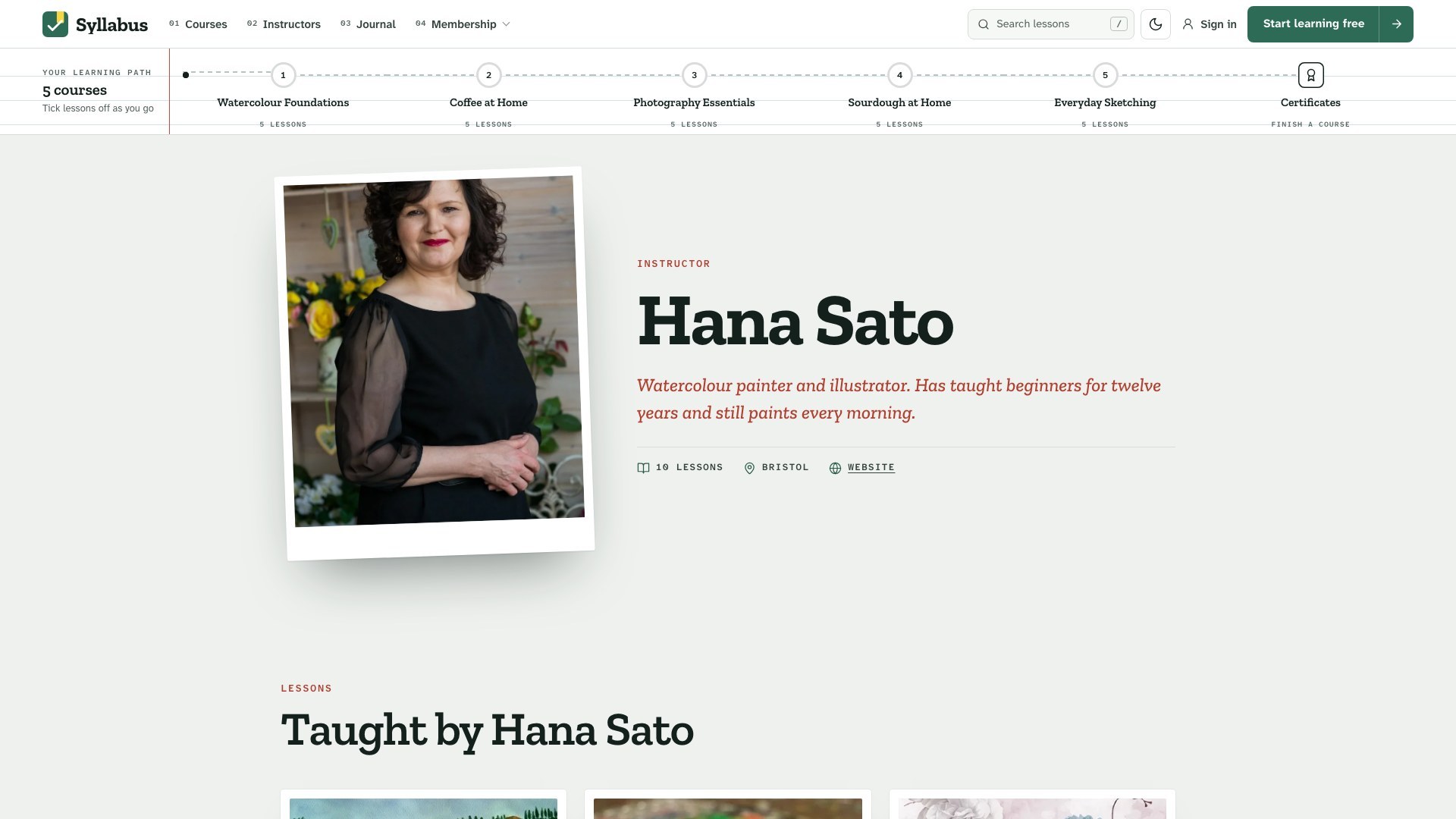
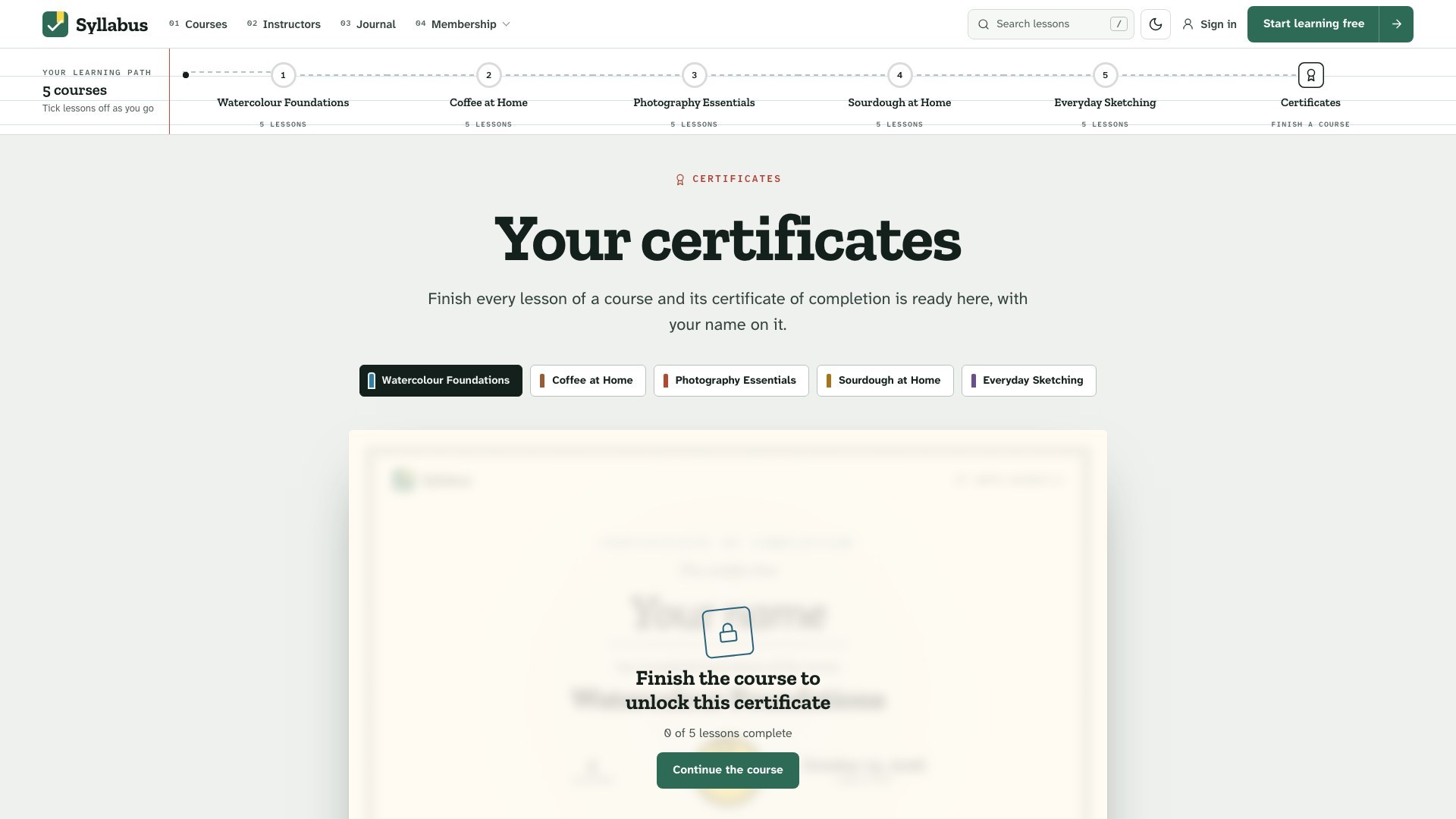
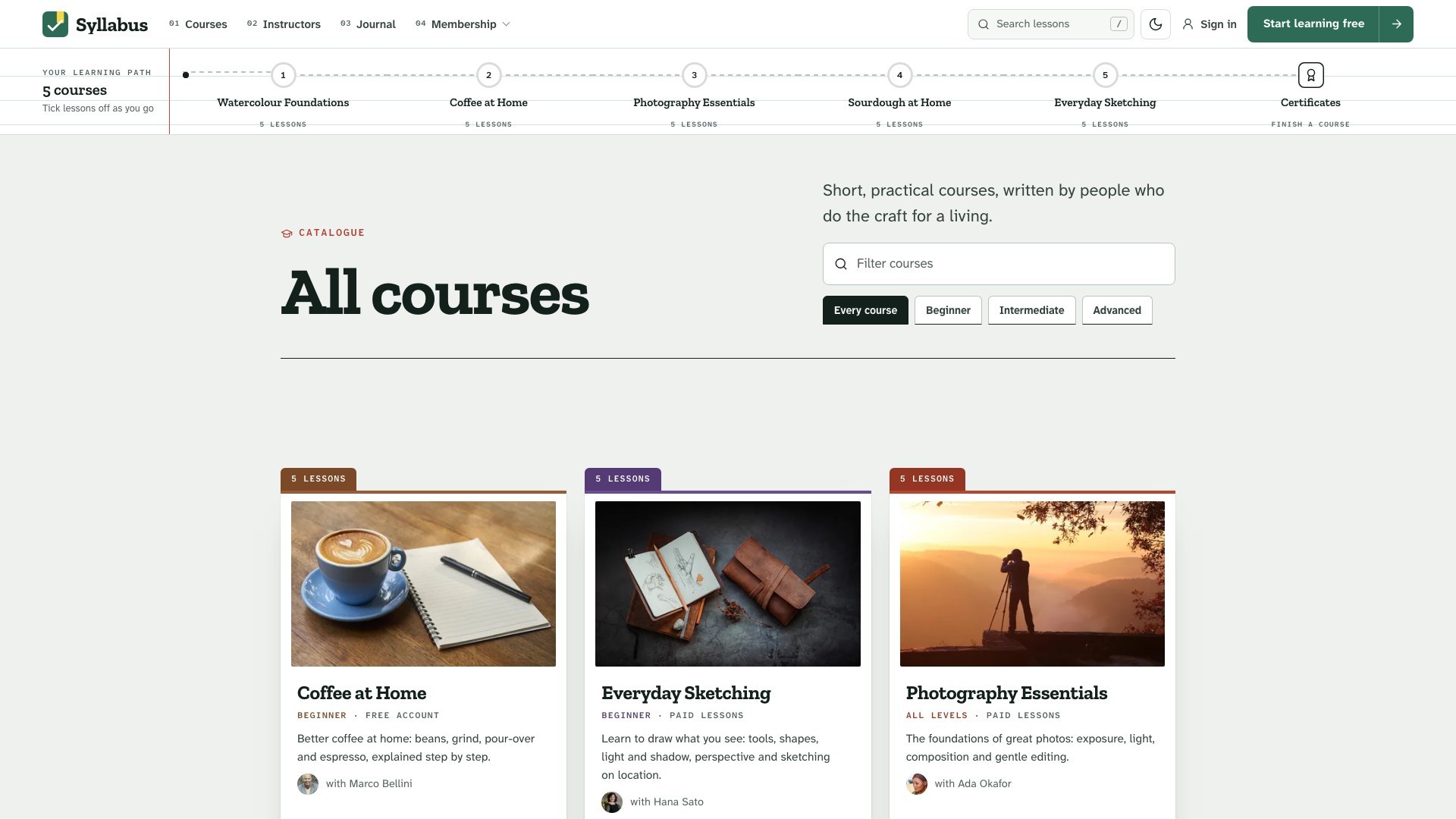
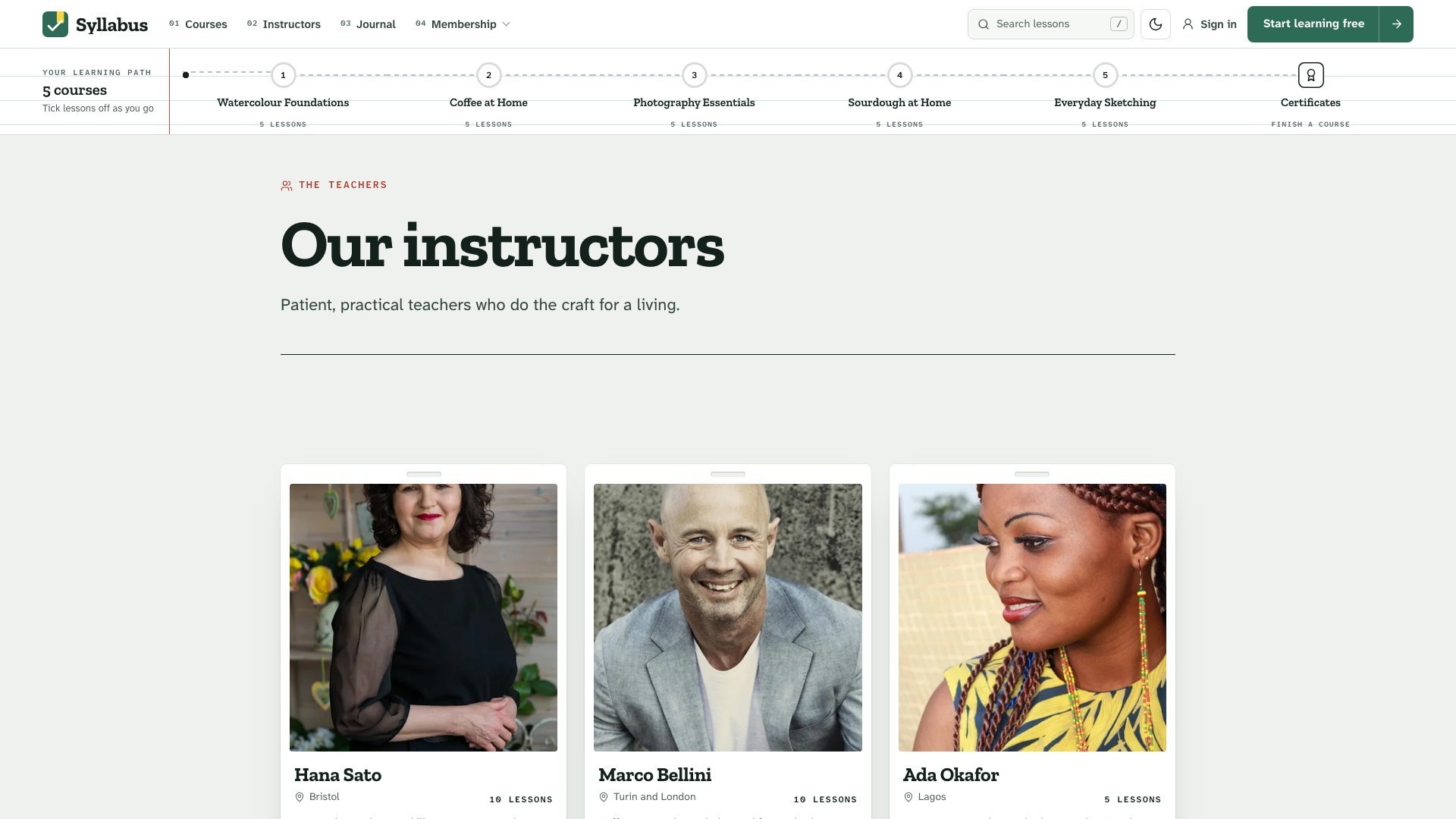
Every template layout of Syllabus, as it looks with the demo content. The photos are the live demo's (stock images for the preview only; they are not in the download).
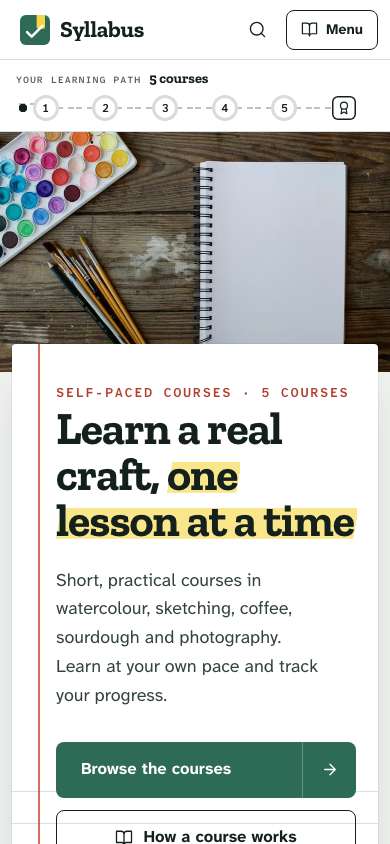
On a phone
The theme's own settings sit in Ghost Admin → Settings → Design & branding → Customize; every one is listed in Theme settings.
Third-party services
Syllabus is a theme: it runs on Ghost and uses the services your Ghost site is connected to. These providers are not part of this item. Each has its own terms and its own pricing tiers, and you are responsible for any costs from them.
| Provider | What it is for | Cost |
|---|---|---|
| Ghost(Pro) or your own server | Runs your Ghost site | Ghost(Pro) is paid (custom themes need the Creator plan or higher); self-hosted Ghost is free, the server and domain are paid |
| Stripe | Paid memberships and tips | Free to connect; Stripe takes a fee on each payment |
| Mailgun (self-hosted Ghost) | Sends newsletters | Paid tiers by volume (Ghost(Pro) includes it) |
| An SMTP email provider (self-hosted Ghost) | Sign-in links and receipts | Depends on the provider |
The theme itself makes no calls to outside services: its fonts and icons are inside the theme. Portal, search and comments are Ghost features loaded by Ghost.
Installation
- Sign in to your Ghost admin (
yoursite.com/ghost). - Go to Settings → Design & branding → Customize → Change theme.
- Click Upload theme and choose
syllabus.zipfrom thesyllabus_2.0.0_for_ghost_6.0.0_or_laterfolder. Do not upload the whole download. - Click Activate.
Ghost(Pro) is a third-party hosting service with its own pricing; you pay Ghost(Pro) for your plan, it is not part of this item. Self-hosted Ghost is free software, but you pay for your own server, domain and email provider.
Updating
When a new version is released, download it from your ThemeForest Downloads page and upload the new
syllabus.zip the same way. Ghost asks whether to overwrite the existing theme — choose
Overwrite. Your content, navigation and theme settings are kept.
If you edited the theme files yourself, keep a copy of your changes first: an update replaces every file.
Quick setup (10 minutes)
To make your site look like the demo, do these steps in order. Each one is explained in detail further down.
- Brand: Settings → Design & branding → set the Accent colour, upload a logo and a site icon.
- Navigation: Settings → Navigation → add your main links (see Navigation).
- Pages: create the pages in Pages and templates and pick the matching template.
- Membership: Settings → Membership → turn on signups; add paid tiers and connect Stripe (see Membership).
- Theme settings: Design & branding → Theme tab (see Theme settings).
- Courses: in Tags, create one public tag per course with a description, a feature image and an accent colour. Give every lesson the course tag as its first tag.
- Modules: add an internal tag such as
#chapter Getting startedto the lessons of each module. - Levels and About (optional): add
#beginner,#intermediate,#advancedor#all-levelsto the first lesson of a course, and give a page the course tag to add an About this course section. - Lesson order: lessons are listed by publish date, oldest first. To reorder, change the publish dates.
Sample content
The download includes the demo's text as a Ghost import file:
sample-content/syllabus-sample-content.json. It holds 29 posts, 18 pages, 5 tags
and the demo writers, with the same templates and settings per post as the live demo. Use it to see how
Syllabus looks with real content, or as a starting point you edit.
- Use a new or test site — the import adds posts next to anything you already have.
- Go to Settings → Advanced → Import/Export → Import content.
- Choose
syllabus-sample-content.jsonand confirm. - Set up Navigation, page templates and theme settings as described below. Ghost does not import these from a content file.
Logo, colours and fonts
Accent colour
Settings → Design & branding → Accent colour. Syllabus uses it for buttons, links, highlights and the reading-progress bar. Syllabus uses your accent colour (pine green #2E6B57 by default) for buttons, links, the logo mark and the signup band. Button text turns black or white automatically so any accent stays readable. Each course uses its tag's accent colour for its stop on the course path, its cards, outline and progress ring; pick strong, mid-dark colours, because white ticks sit on them.
Logo
Upload a logo in Design & branding → Brand. Without a logo, Syllabus shows the site title in the theme's display font. A transparent PNG or SVG around 400 × 100 px works best. If your logo is dark, upload a light version in the Theme tab under Logo for dark mode.
Fonts
Syllabus ships its own fonts (Atkinson Hyperlegible Mono, Atkinson Hyperlegible Next, Zilla Slab), hosted inside the theme — no requests to Google. To use different fonts, pick a Heading font and Body font in Design & branding → Brand. The theme follows your choice everywhere. Choose Theme default to go back.
Light and dark mode
In the Theme tab, Color scheme sets the default: Light, Dark or System (follows the reader's device). Readers can switch with the moon/sun button in the header or the switch in the menu; their choice is remembered on that device.
Theme settings
Settings → Design & branding → Customize. Theme settings are split between the Site wide, Homepage and Post tabs. Every setting:
| Setting | Group | Type | Default | What it does |
|---|---|---|---|---|
| Color scheme | Site wide | select | Light (Light / Dark / System) | Readers can still switch with the sun/moon button. |
| Logo for dark mode | Site wide | image | — | Optional light version of your logo for dark mode. |
| Photo style | Site wide | select | Natural (Natural / Warm / Monochrome) | One colour treatment for every photo, so all images look like one set. |
| Footer text | Site wide | text | empty | Line under the big footer words. Empty = site description. |
| Newsletter title | Site wide | text | Start learning for free | Title of the signup boxes. |
| Newsletter text | Site wide | text | empty | Text of the signup boxes. Empty = site description. |
| Home layout | Homepage | select | Campus (Campus / Catalogue / Mentor) | Campus: syllabus card hero. Catalogue: search first. Mentor: led by your main instructor. |
| Hero title | Homepage | text | Learn a real craft, one lesson at a time | Big homepage headline. |
| Hero highlight | Homepage | text | one lesson at a time | Words of the headline to mark with the highlighter. Empty = none. |
| Hero text | Homepage | text | empty | Text under the headline. Empty = site description. |
| Courses title | Homepage | text | Choose your next course | Title of the course section. |
| Show continue | Homepage | boolean | On | A "Continue where you left off" card for readers who started a course. |
| Show instructors | Homepage | boolean | On | Your instructors (staff users with lessons). |
| Course path | Post | select | Lesson titles (Lesson titles / Beads only) | On a lesson, the course path shows every lesson's title, or beads only (titles on hover). |
| Show progress | Post | boolean | On | Mark-as-complete buttons and progress, saved in each reader's browser. |
| Show quiz | Post | boolean | On | Turn lists under a "Quick check" heading into quizzes. |
| Show certificate | Post | boolean | On | Links to the certificate page when a reader finishes a course. |
| Show toc | Post | boolean | On | "On this page" list beside long lessons. |
| Show share buttons | Post | boolean | On | Share buttons (X, Facebook, LinkedIn, copy link) under posts. |
| Show reading progress | Post | boolean | On | Progress bar at the top of the screen while reading a post. |
Building a course
- Create a public tag for the course (for example Watercolour Foundations) with a description, image and accent colour. Its tag page becomes the course page.
- Write each lesson as a post with the course tag first. Lessons appear in publish-date order, oldest first; the previous and next links stay inside the course.
- Modules (optional): add an internal tag that starts with
#chapterto each lesson, for example#chapter Getting started. Lessons next to each other with the same tag form a module; modules are numbered in order and show their lesson count and minutes. - Set members-only or paid access on any lesson. Readers without access see a lock on the path and the gate on the lesson.
- Level (optional): add one internal tag to the course's first lesson:
#beginner,#intermediate,#advancedor#all-levels. The level shows on the course cards and in the facts on the course page, and the Courses page offers it as a filter chip. A course marked#all-levelsshows under every level. - About this course (optional): create a page, give it the course tag in the page settings (Tags) and write a short introduction, then headings such as Who this course is for and What you need, and a few questions as Toggle cards. Its text shows above the curriculum on the course page. The page also has its own address; leave it out of your navigation.
- Create a page with the Courses template (slug
courses) for the catalogue, a page with the Instructors template (sluginstructors) and a page with the Certificate template (slugcertificate).
Who can open a course
Ghost has no access setting for a tag, so Syllabus reads it from the lessons. Every course card and course page says Paid lessons when at least one lesson is paid (or for chosen tiers), Free account when at least one lesson is for members, and Free when every lesson is public. On the Courses page, a level or Free chip shows only when it narrows the list: a chip that would match no course, or every course, is left out.
Progress, the learning path and Continue
Readers mark each lesson as complete with the button at the end of the lesson. The course path under the bar, the outline, the course page, the course cards and the lesson rows then show ticks, the line fills up to the furthest finished lesson and the rings show the share done. The homepage shows a Continue where you left off card for the last lesson opened. The course page has a Reset progress link.
Progress is stored in each reader's browser (no account, nothing sent to a server), so it does not follow a reader to another device. Turn it off with Show progress; turn off the homepage card with Show continue.
Certificates of completion
When a reader has finished every lesson of a course, the end of the last lesson and the outline link to its certificate on your Certificate page. The certificate shows the reader's name (they type it on the page), the course, the number of lessons, the instructor, the date and a certificate number, and prints on one page or saves as a PDF.
Like progress, it lives in the reader's browser. The page says plainly that it is a personal record of completion, not an accredited qualification. Turn the links off with Show certificate.
Writing a quick check
Add a heading (H2 or H3) that starts with Quick check near the end of a lesson. Under it, write each question as a normal paragraph, followed by a bulleted list of answers. Make the one right answer bold (select it and press Ctrl/Cmd+B).
Syllabus turns every such list into buttons: readers pick an answer, see right or wrong, and get a score with a Try again button. Without JavaScript the bold answer simply shows as the answer key. The heading word comes from the translation file, so it follows your site language. Turn it off with Show quiz.
Three homepages
Pick one in Design & branding → Homepage → Home layout. All three take Hero title, Hero highlight (the words drawn over with a highlighter), Hero text and Courses title.
- Campus — a ruled sheet laid over your cover photo with the headline, the buttons and the school in numbers, and a Start here note (or Continue for a returning reader); then the Contents (every course like a book's table of contents, its photo on hover), one course on the chalkboard, how a lesson works (a lesson page with the teacher's notes), new lessons with More lessons (9 per page), the journal, instructors and an enrolment slip.
- Catalogue — search first with a course index and a stack of course covers, Continue, the catalogue with a live filter, the school in numbers, new lessons, the journal, your plans, instructors and the enrolment slip.
- Mentor — led by your main instructor (the author of the most lessons): their taped portrait and a letter in their own words, a ticker of courses, their course on the chalkboard, how a lesson works, every course, new lessons, the journal, instructors and the enrolment slip.
Cover photo: the Campus homepage lays its sheet over the Publication cover (Settings → Design & branding → Brand). Without one it uses the photo of your largest course. A wide photo of at least 2000 px works best.
To show a second layout as its own page (as the demo does), create a page with the Home Catalogue or Home Mentor template.
Lesson layouts
On every lesson the course path runs along the top: the course, its modules as numbered stops, every lesson as a bead with its title, the certificate at the end and a Contents button that opens the full outline as a drawer. Once the path scrolls away, a slim copy docks under the bar with the reader's place. Course path in Design settings sets the lesson titles: Lesson titles (shown under each bead) or Beads only (the title shows on hover). Courses with many lessons, and screens under 1024 px, show beads only. Pick the Lesson Focus template in the post settings for one wide, centred column with a large cover. On phones the path is one slim strip and the outline opens as a sheet from the lesson bar at the bottom.
Video lessons
Add the internal tag #video to a lesson and put a video first in it: a Video card (upload your file) or an Embed card (YouTube, Vimeo, Loom and so on). The video then takes the cover's place at the top of the lesson. The lesson head says Video lesson, and the lesson card, the outline step and the lesson rows show a play mark. Progress, quick checks and certificates work as on any lesson. Keep a feature image on the post: it is the card picture and the share image.
The journal: articles beside your courses
Not every post has to be a lesson. Add the internal tag #journal to a post (type #journal in the Tags field) and Syllabus treats it as an article:
- It gets its own layout: a centred head with the author, reading time and date, a large first letter, share links, comments and three more articles.
- It stays out of course outlines, lesson lists, the homepage's New lessons and every lesson count.
- The homepage shows the four newest articles under From the journal, and each instructor's page lists their articles.
- Create a page with the Journal template (slug
journal). Its title and excerpt become the heading; the newest article runs large, the others follow in a grid with More articles. - Add the page to your navigation.
Optional: give the journal its own addresses
Without a routes file, articles live at /article-slug/ like lessons, and a page of New lessons can show fewer than 9 lessons when articles fall on it. The theme folder includes routes.yaml: it puts articles at /journal/article-slug/, pages the journal (/journal/page/2/) and keeps full pages of lessons on the homepage. Upload it in Settings → Labs → Routes → Upload routes file after creating the Journal page. Download your current routes file first if you have changed it, so you can merge the two.
Pages and templates
Syllabus includes page templates for the pages every membership site needs. Create a page in Ghost (Pages → New page), set its URL in the page settings, then choose the Template in the same panel.
| Template | Suggested URL | Use |
|---|---|---|
Coursescustom-courses.hbs | /courses/ | Every course (public tag) as a card with its level, who can open it, lesson count, instructor and the reader's progress, with a live filter and level chips. |
Instructorscustom-instructors.hbs | /instructors/ | Every staff user with at least one lesson: photo, location, bio and lesson count. |
Journalcustom-journal.hbs | /journal/ | Your articles (posts with the internal tag #journal): the newest large, then a grid with More articles. The page title and excerpt make the heading. |
Certificatecustom-certificate.hbs | /certificate/ | Each course as a chip; a finished course shows its certificate with the reader's name, ready to print. |
Membershipcustom-membership.hbs | /membership/ | Your tiers as cards with a monthly/yearly switch, what members unlock, then the page body (for example a FAQ made of toggle cards). |
Membership Comparecustom-membership-compare.hbs | /plans/ | Your tiers side by side in a comparison table: free, members and paid lessons with counts, then each tier's benefits. |
Home Cataloguecustom-home-catalogue.hbs | /home-catalogue/ | The Catalogue homepage as its own page, whatever the Home layout setting says. |
Home Mentorcustom-home-mentor.hbs | /home-mentor/ | The Mentor homepage as its own page, whatever the Home layout setting says. |
Signincustom-signin.hbs | /signin/ | Email sign-in form (magic link) with the page's feature image. |
Signupcustom-signup.hbs | /signup/ | Free signup form with name and email and the page's feature image. |
Accountcustom-account.hbs | /account/ | Signed-in members see their courses with progress, their plan, renewal date and card, and links to manage billing and newsletters. |
Tip: the membership page shows your tiers automatically. Anything you write in the page body appears underneath — the demo uses toggle cards for a FAQ.
Post templates
Choose a template per post in the post settings panel → Template.
| Template | Use | |
|---|---|---|
Lesson Focuscustom-lesson-focus.hbs | One wide, centred column with a large cover; the course path and Contents stay at the top. |
Membership, tiers and payments
Syllabus is built for Ghost's members features: free and paid signups, tiers, a paywall and the Portal popup.
1. Turn on signups
Settings → Membership → Access → Who should be able to subscribe? → Anyone can sign up.
2. Connect Stripe
Settings → Membership → Tiers → Connect with Stripe. Use test mode first, then switch to live mode when you are ready to take real payments.
Stripe is a third-party payment service with its own pricing: it charges a fee on every payment (see stripe.com/pricing), and you are responsible for those fees.
3. Create tiers
Settings → Membership → Tiers. Add a name, monthly and yearly prices, a description and benefits. Syllabus shows every public tier on the membership page with a monthly/yearly switch, and marks the second tier as Most popular.
4. Members-only content
In a post's settings set Post access to Members only, Paid-members only or
specific tiers. Readers without access see the start of the post and a paywall box that invites them to join
or upgrade. To choose where the preview stops, add a Public preview divider in the editor
(type /public).
5. Sign-up forms and buttons
Subscribe forms in the theme create free members and send a confirmation email. Every Subscribe, Sign in and Account button opens Ghost's Portal popup, so members can change plans, update cards and cancel without leaving your site.
config.production.json. Mailgun and SMTP providers
are third-party services with their own pricing, and you are responsible for any costs.Reading features
- Reading progress bar on posts, in the post's topic colour (can be turned off in the Post tab).
- Image lightbox: click any image or gallery photo in a post to see it full screen; use the arrow keys to move through a gallery.
- Every editor card is styled: images (regular, wide, full), galleries, quotes, callouts, toggles, bookmarks, buttons, videos, audio, files, products, headers and signups. Create a page with every card to check your brand — the demo's style guide shows them all.
Posts per page
The home, tag and author pages load 9 posts, then a
Load more button fetches the next set without reloading the page. To change the number, edit
"posts_per_page" in package.json, zip the theme folder and upload it again.
Translation
Every word in the theme can be translated.
Syllabus already includes English (en), German (de), Spanish (es), French (fr), Italian (it), Dutch (nl) and Portuguese (pt and pt-BR). To use one, enter its code under Settings → General → Publication language. For any other language:
- In the unzipped theme folder, copy
locales/en.jsonto a new file named after your language code, for examplelocales/pl.json. - Translate the values (the text on the right). Keep the keys (the text on the left) and anything in
{curly braces}unchanged. - Zip the theme folder and upload it.
- Settings → General → Publication language → enter the same code (
pl).
Custom CSS
Small style changes do not need a new theme upload. Settings → Code injection → Site header:
<style>
.curriculum .step.is-done .node { background: #f2b544; border-color: #f2b544; }
.hero-title .hl { background: none; text-decoration: underline; }
</style>
Development
For larger changes, work on the unzipped syllabus/ folder. You need Node.js 20 or later.
cd syllabus
npm install        # once
npm run dev        # rebuild CSS/JS on every change
npm run build      # one-off build
npm test           # check the theme with gscan
npm run zip        # dist/syllabus.zip, ready to upload
CSS lives in src/css (one file per area, joined by main.css); JavaScript in
src/js. Built files go to assets/built. Templates are Handlebars files in the theme root
and in partials/.
Questions
The homepage looks empty after I activated the theme.
The home sections use your posts, featured posts and tags. Publish a few posts, mark some as Featured and add tags. The Contents, the chalkboard course and the course cards appear once you have public tags with posts.
The membership page shows no prices.
Paid tiers only appear once Stripe is connected and the tiers are public (Settings → Membership → Tiers).
Sign-in emails do not arrive.
Check your email settings (self-hosted: Mailgun or SMTP in the config file). Ask readers to look in their spam folder.
How do I remove "Published with Ghost" from the footer?
Delete the link from partials/footer.hbs in the unzipped theme, zip the folder and upload it again.
Can I use the theme on more than one site?
A Regular licence covers one site (one end product). Buy one licence per site.
Are the demo images included?
No. Demo photos come from Pixabay and are only used on the demo site. The theme itself contains no stock photos.
Support
Support is included with your purchase and covers: answering questions about the theme's features, and fixing bugs. It does not cover custom changes or problems with third-party code.
Email support@codememory.com with your purchase code and your site address. See the changelog for what changed in each version and third-party materials for credits.