Folio documentation
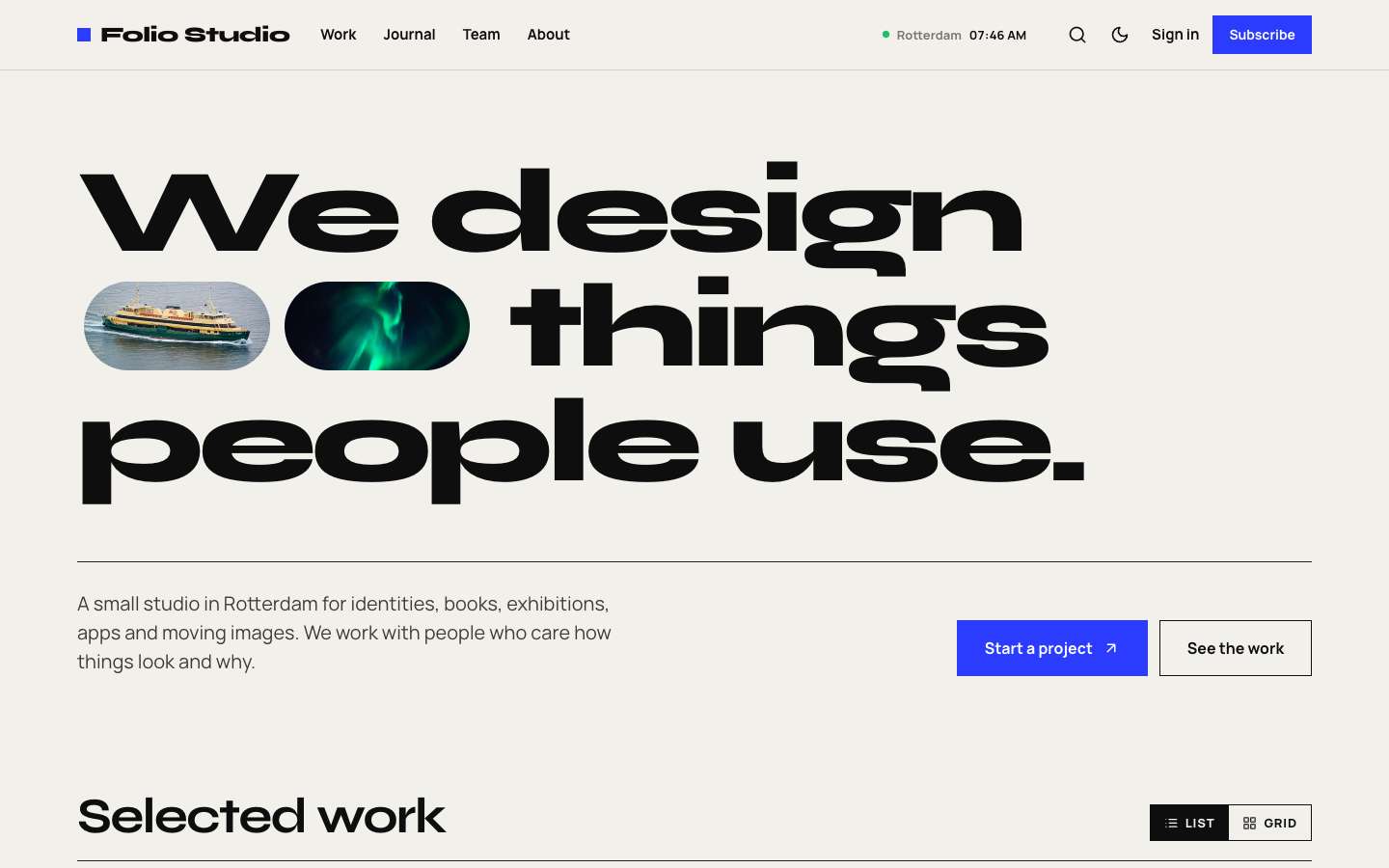
A bold, Swiss-style Ghost theme for design studios, agencies and portfolios, with a studio journal and memberships.
Thank you for choosing Folio. This guide covers everything from uploading the theme to setting up paid memberships. If something is not covered here, write to support@codememory.com — we answer within one working day.
- Version1.0.0
- Ghost6.0.0 or later
- Live demofolio.ghostcms.templates.codememory.com
- AuthorCode Memory
Highlights
- Giant typographic homepage statement with project images set inside the words
- Case-study layout for projects: huge title, lead, facts (services, year, lead, reading time) and a full-width cover
- Project index with a List/Grid switch that each reader's choice is remembered for
- Image preview that follows the cursor over the project list
- 'Next project' band that walks through every case study and wraps round at the end
- Edge-to-edge post template: every image in the story runs full width
- Services list built from your tags, with project counts
- Studio journal with previous/next links and related posts
- Live studio clock in the header, in your studio's time zone
- Giant contact band with your email and a giant site title in the footer, both fitted to the screen
- Work and Team pages, and team member pages
- Membership page with tiers and a monthly/yearly switch
- Styled paywall for members-only and paid stories
- Sign in, sign up and account pages
- Light first, with dark and system modes and a reader toggle
- Reading progress bar and image lightbox
- Self-hosted fonts (Syne, Manrope)
- Fully translatable, 19 theme settings, no jQuery
What is in the download
themeforest-folio-ghost-theme/
├── documentation/                          ← you are here
└── folio_1.0.0_for_ghost_6.0.0_or_later/
    ├── folio.zip                          ← upload this file to Ghost
    └── folio/                             ← the same theme, unzipped, with source files
You only need folio.zip to use the theme. The unzipped folder is there for developers who
want to change the code (see Development).
Installation
- Sign in to your Ghost admin (
yoursite.com/ghost). - Go to Settings → Design & branding → Customize → Change theme.
- Click Upload theme and choose
folio.zipfrom thefolio_1.0.0_for_ghost_6.0.0_or_laterfolder. Do not upload the whole download. - Click Activate.
Updating
When a new version is released, download it from your ThemeForest Downloads page and upload the new
folio.zip the same way. Ghost asks whether to overwrite the existing theme — choose
Overwrite. Your content, navigation and theme settings are kept.
If you edited the theme files yourself, keep a copy of your changes first: an update replaces every file.
Quick setup (10 minutes)
To make your site look like the demo, do these steps in order. Each one is explained in detail further down.
- Brand: Settings → Design & branding → set the Accent colour, upload a logo and a site icon.
- Navigation: Settings → Navigation → add your main links (see Navigation).
- Pages: create the pages in Pages and templates and pick the matching template.
- Membership: Settings → Membership → turn on signups; add paid tiers and connect Stripe (see Membership).
- Theme settings: Design & branding → Theme tab (see Theme settings).
- Case studies: add the internal tag
#workto every project post. It gives the post the case-study layout and puts it in the project index. - Disciplines: give each project one or more public tags such as Branding or Editorial. They fill the services list and the Discipline column.
- Journal: create a public tag with the slug
journalfor studio notes and articles. The homepage shows the newest three. - Contact: set Contact email, Studio location and Studio timezone (for example
Europe/Amsterdam) in Design → Site wide.
Logo, colours and fonts
Accent colour
Settings → Design & branding → Accent colour. Folio uses it for buttons, links, highlights and the reading-progress bar. Folio uses one electric cobalt accent (#2B3CFF by default) for buttons, the contact band, the featured tier and small details. Change it in Design & branding and the whole theme follows.
Logo
Upload a logo in Design & branding → Brand. Without a logo, Folio shows the site title in the theme's display font. A transparent PNG or SVG around 400 × 100 px works best. If your logo is dark, upload a light version in the Theme tab under Logo for dark mode.
Fonts
Folio ships its own fonts (Manrope, Syne), hosted inside the theme — no requests to Google. To use different fonts, pick a Heading font and Body font in Design & branding → Brand. The theme follows your choice everywhere. Choose Theme default to go back.
Light and dark mode
In the Theme tab, Color scheme sets the default: Light, Dark or System (follows the reader's device). Readers can switch with the moon/sun button in the header or the switch in the menu; their choice is remembered on that device.
Theme settings
Settings → Design & branding → Customize. Theme settings are split between the Site wide, Homepage and Post tabs. Every setting:
| Setting | Group | Type | Default | What it does |
|---|---|---|---|---|
| Color scheme | Site wide | select | Light (Light / Dark / System) | Default colour scheme. Readers can still switch with the toggle. |
| Logo for dark mode | Site wide | image | — | A light version of your logo, shown in dark mode. |
| Studio location | Site wide | text | Lisbon | City shown next to the live studio clock. Empty = no clock. |
| Studio timezone | Site wide | text | Europe/Lisbon | Time zone for the clock, e.g. Europe/London or America/New_York. |
| Contact email | Site wide | text | hello@example.com | Where "Start a project" buttons send people. |
| Hero line one | Homepage | text | We design brands, | First line of the big homepage statement. |
| Hero line two | Homepage | text | books and buildings. | Second line. Two project images sit between the lines. |
| Hero text | Homepage | text | An independent studio for identity, editorial and spatial design. We work with people who care how things look and why. | Short intro under the statement. Empty = site description. |
| Work title | Homepage | text | Selected work | Title of the project index. |
| Work view | Homepage | select | List (List / Grid) | How projects show first. Readers can switch. |
| Show journal | Homepage | boolean | On | |
| Journal title | Homepage | text | From the journal | Title of the journal section. |
| Contact title | Homepage | text | Have a project in mind? | Big line in the contact band. |
| Show share buttons | Post | boolean | On | Share buttons (X, Facebook, LinkedIn, copy link) under posts. |
| Show author box | Post | boolean | On | Author photo and bio under posts. |
| Show next story | Post | boolean | On | |
| Show related posts | Post | boolean | On | Three posts from the same tag under each post. |
| Show reading progress | Post | boolean | On | Progress bar at the top of the screen while reading a post. |
| Footer text | Site wide | text | empty | Footer text. Empty = site description. |
Case studies and the #work tag
Folio has two kinds of post. A post with the internal tag #work is a case study: it opens with a very large title, the custom excerpt as a lead paragraph and a facts box (services from its public tags, the year, the author as project lead and the reading time), then a full-width cover image. After the story, a Next project band links to the next older case study; the oldest one links back to the newest.
Every other post is a journal post with a classic article layout, previous/next links and three related posts.
- Create a post and write the story. Use wide and full images and galleries freely.
- In the post settings, add the tag
#work(with the hash) and one or more discipline tags. - Write a short Excerpt: it becomes the lead paragraph.
- Choose a strong feature image of at least 2000 px wide.
Homepage
- Statement — two lines of very large type (Hero line one, Hero line two) with the images of your two newest case studies set between them as small pills. Under it: Hero text and a Start a project button that opens your contact email.
- Selected work — your case studies as a numbered list (title, disciplines, year). Hovering a row shows its image beside the cursor. Work view sets List or Grid as the default; readers can switch, and their choice is remembered. Rename the section with Work title.
- What we do — every public tag except the journal, with its number of posts.
- From the journal — the three newest posts that are not case studies. Settings: Show journal, Journal title.
- Contact band — your contact email in giant type on the accent colour (Contact title). It is hidden when Contact email is empty.
Edge-to-edge template and studio clock
Choose the Full bleed template for projects where the photographs matter most. Every image and gallery in the story runs the full width of the screen, with no gaps between gallery images.
The header and footer show a small live clock with your studio's city, for example Rotterdam 09:41. Set Studio location and Studio timezone; use a time-zone name from the IANA list such as Europe/London or America/New_York. Leave the location empty to hide the clock.
Pages and templates
Folio includes page templates for the pages every membership site needs. Create a page in Ghost (Pages → New page), set its URL in the page settings, then choose the Template in the same panel.
| Template | Suggested URL | Use |
|---|---|---|
Workcustom-work.hbs | /work/ | Every case study (#work) as the numbered project index with the List/Grid switch. |
Teamcustom-team.hbs | /team/ | Every staff member with at least one post: portrait (black and white until hovered), location, bio and post count. |
Membershipcustom-membership.hbs | /membership/ | Your tiers with a monthly/yearly switch. The page body (for example a FAQ made of toggle cards) appears below. |
Signincustom-signin.hbs | /signin/ | Email sign-in form (magic link). The page's feature image fills the right half. |
Signupcustom-signup.hbs | /signup/ | Free signup form with name and email. The page's feature image fills the right half. |
Accountcustom-account.hbs | /account/ | Signed-in members see their plan, renewal date, card and links to manage billing and newsletters. |
Tip: the membership page shows your tiers automatically. Anything you write in the page body appears underneath — the demo uses toggle cards for a FAQ.
Post templates
Choose a template per post in the post settings panel → Template.
| Template | Use | |
|---|---|---|
Full bleedcustom-full-bleed.hbs | Case-study layout where every image and gallery in the story runs edge to edge. |
Membership, tiers and payments
Folio is built for Ghost's members features: free and paid signups, tiers, a paywall and the Portal popup.
1. Turn on signups
Settings → Membership → Access → Who should be able to subscribe? → Anyone can sign up.
2. Connect Stripe
Settings → Membership → Tiers → Connect with Stripe. Use test mode first, then switch to live mode when you are ready to take real payments.
3. Create tiers
Settings → Membership → Tiers. Add a name, monthly and yearly prices, a description and benefits. Folio shows every public tier on the membership page with a monthly/yearly switch, and marks the second tier as Most popular.
4. Members-only content
In a post's settings set Post access to Members only, Paid-members only or
specific tiers. Readers without access see the start of the post and a paywall box that invites them to join
or upgrade. To choose where the preview stops, add a Public preview divider in the editor
(type /public).
5. Sign-up forms and buttons
Subscribe forms in the theme create free members and send a confirmation email. Every Subscribe, Sign in and Account button opens Ghost's Portal popup, so members can change plans, update cards and cancel without leaving your site.
config.production.json.Reading features
- Reading progress bar on posts, in the post's topic colour (can be turned off in the Post tab).
- Image lightbox: click any image or gallery photo in a post to see it full screen; use the arrow keys to move through a gallery.
- Every editor card is styled: images (regular, wide, full), galleries, quotes, callouts, toggles, bookmarks, buttons, videos, audio, files, products, headers and signups. Create a page with every card to check your brand — the demo's style guide shows them all.
Posts per page
The home, tag and author pages load 6 posts, then a
Load more button fetches the next set without reloading the page. To change the number, edit
"posts_per_page" in package.json, zip the theme folder and upload it again.
Translation
Every word in the theme can be translated.
- In the unzipped theme folder, copy
locales/en.jsonto a new file named after your language code, for examplelocales/fr.json. - Translate the values (the text on the right). Keep the keys (the text on the left) and anything in
{curly braces}unchanged. - Zip the theme folder and upload it.
- Settings → General → Publication language → enter the same code (
fr).
Custom CSS
Small style changes do not need a new theme upload. Settings → Code injection → Site header:
<style>
.hero-title { letter-spacing: -.04em; }
.contact { background: #0e0e0e; }
</style>
Development
For larger changes, work on the unzipped folio/ folder. You need Node.js 20 or later.
cd folio
npm install        # once
npm run dev        # rebuild CSS/JS on every change
npm run build      # one-off build
npm test           # check the theme with gscan
npm run zip        # dist/folio.zip, ready to upload
CSS lives in src/css (one file per area, joined by main.css); JavaScript in
src/js. Built files go to assets/built. Templates are Handlebars files in the theme root
and in partials/.
Questions
The homepage looks empty after I activated the theme.
The home sections use your posts, featured posts and tags. Publish a few posts, mark some as Featured and add tags. The statement images and Selected work appear once posts have the #work tag.
The membership page shows no prices.
Paid tiers only appear once Stripe is connected and the tiers are public (Settings → Membership → Tiers).
Sign-in emails do not arrive.
Check your email settings (self-hosted: Mailgun or SMTP in the config file). Ask readers to look in their spam folder.
How do I remove "Published with Ghost" from the footer?
Delete the link from partials/footer.hbs in the unzipped theme, zip the folder and upload it again.
Can I use the theme on more than one site?
A Regular licence covers one site (one end product). Buy one licence per site.
Are the demo images included?
No. Demo photos come from Pixabay and are only used on the demo site. The theme itself contains no stock photos.
Support
Support is included with your purchase and covers: answering questions about the theme's features, and fixing bugs. It does not cover custom changes or problems with third-party code.
Email support@codememory.com with your purchase code and your site address. See the changelog for what changed in each version and third-party materials for credits.